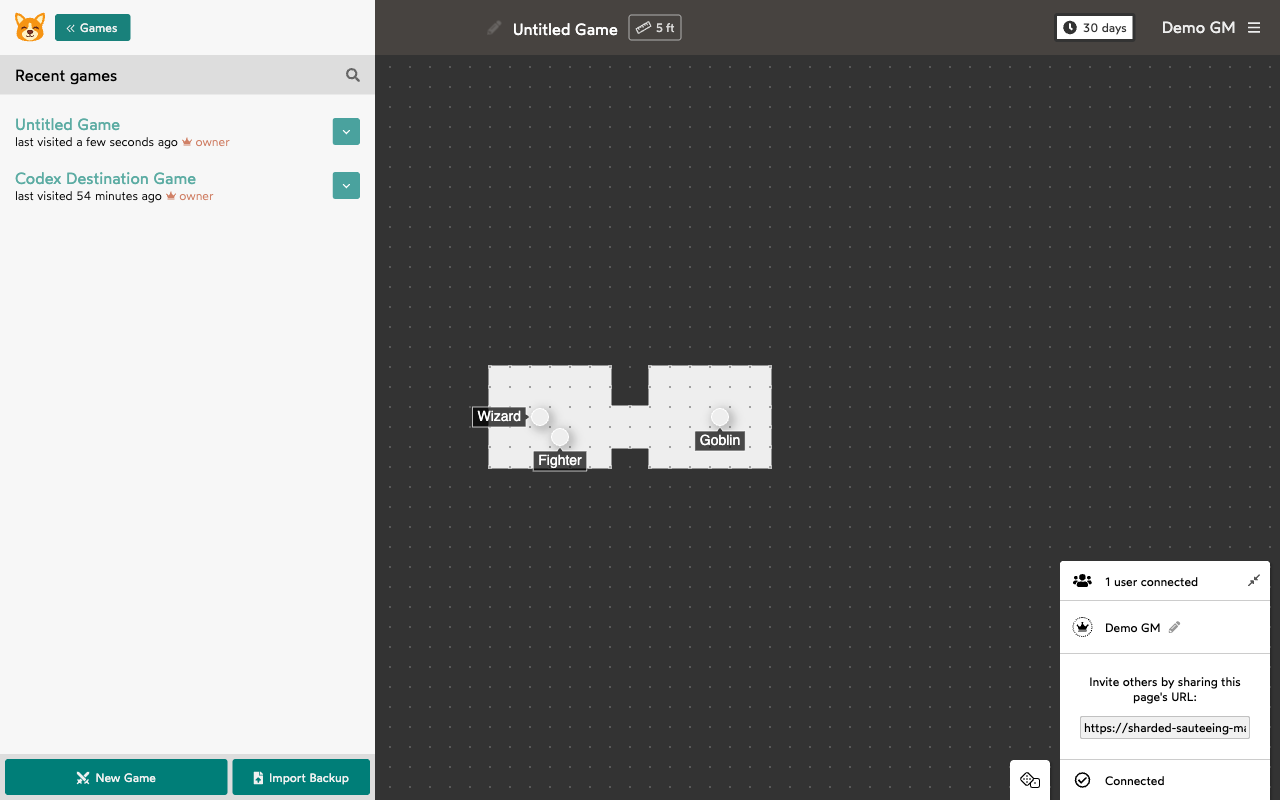
All your games are managed through the sidebar. Click “Games” in the top-left to open it.
Creating a Game
Click the New Game button at the bottom of the sidebar. This creates a new game with a blank map.
Renaming a Game
Click the game’s title at the top-center of the screen to edit it.
Searching for a Game
Click the magnifying glass icon or the “Recent games” header in the sidebar, then type part of the title you’re looking for. The search only covers the list you’re currently viewing — if you don’t find your game in active games, check archived games too.
Game Menu
Click the dropdown arrow next to a game in the sidebar to see its options:
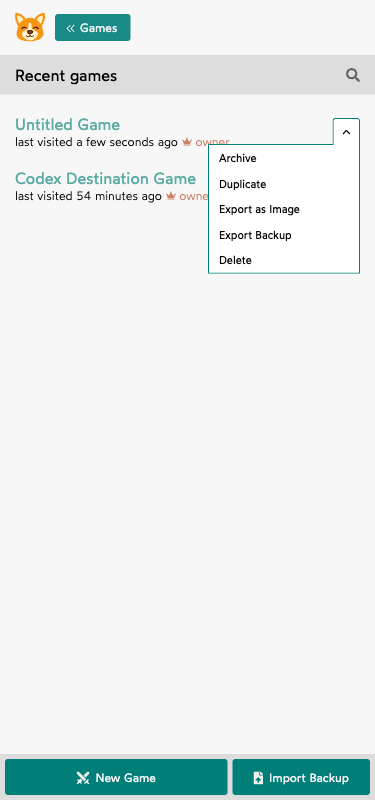
- Archive: Hides the game from your active list. Useful for finished campaigns. You can find and unarchive it later.
- Duplicate: Creates a copy of the game with all its maps and content.
- Export as Image: Saves the current map as a PNG image file.
- Export Backup: Downloads the entire game (all maps) as a JSON file. You can import this backup later using the “Import Backup” button at the bottom of the sidebar.
- Delete: Moves the game to the deleted list. You can restore it from there if needed.
Viewing Archived and Deleted Games
The sidebar defaults to showing your recent (active) games. Click the header area to switch between active, archived, and deleted game lists.
Importing a Game
Click the Import Backup button at the bottom of the sidebar and select a JSON backup file previously exported from Shmeppy.