Open the Dice Tray by clicking the dice icon in the bottom-right corner of the screen.

Click it again to collapse it. The Dice Tray is available to everyone in the game (GMs and players alike).
Adding Dice
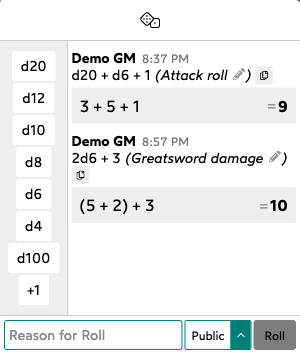
Click the dice buttons (d20, d12, d10, d8, d6, d4, d100) to add dice to your roll. Click the same button multiple times to add more of that die. You can also add a flat modifier with the +1 button.
Shift-Click a button to add or remove 5 at a time.
Rolling
Click the Roll button to roll your dice. The result will appear in the roll log, visible to you and (depending on your visibility setting) other connected players.
You can also press Enter while the reason input is focused to roll.
Roll Visibility
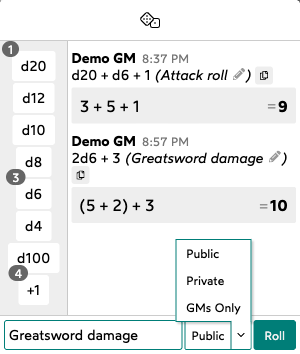
Click the visibility dropdown (next to the Roll button) to control who can see your roll:
- Public: All connected users will be able to see the roll.
- GMs Only: Only GMs and yourself will be able to see the roll.
- Private: Only you will be able to see the roll.
Your visibility setting is remembered between rolls.
Roll Reasons
Type a reason into the “Reason for Roll” text box before rolling. This will be displayed alongside your roll result in the log (ex: “Attack roll” or “Perception check”).
You can edit the reason on a roll after it’s been made by clicking the reason text or the pencil icon next to it in the roll log.
Roll Log
The roll log shows all rolls made in the current session, with the most recent at the bottom.
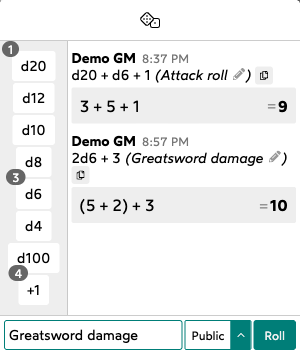
Each entry shows:
- Who rolled and when (top line)
- What was rolled, like “2d6 + 3” (second line)
- Reason in parentheses, with a pencil icon to edit it (second line)
- A copy button to reload those dice and reason into your tray (second line)
- The individual die results broken out, like “(5 + 2) + 3” (third line)
- The total on the right (third line)
Custom Roll Expressions
You can type a roll expression directly into the reason input instead of using the buttons. Start your input with / to enter expression mode. For example, typing /2d6+4 and pressing Enter (or clicking Roll) will roll 2d6+4.