Tokens can be customized with different shapes, custom images, and visibility settings. Access these options by double-clicking a token with the Token tool selected.
Token Shapes
Click the shape dropdown in the token properties popup to choose from five shapes:

- Ellipse: The default circular token.
- Ellipse w/ Arrow: A circle with a directional arrow, useful for showing which way a creature is facing.
- Rectangle: A square/rectangular token.
- Rectangle w/ Arrow: A rectangle with a directional arrow.
- Image Only: Displays only the token’s image with no border or background shape. Useful for custom art that shouldn’t be clipped to a circle or rectangle.
To change a token’s shape, double-click it and use the shape dropdown:
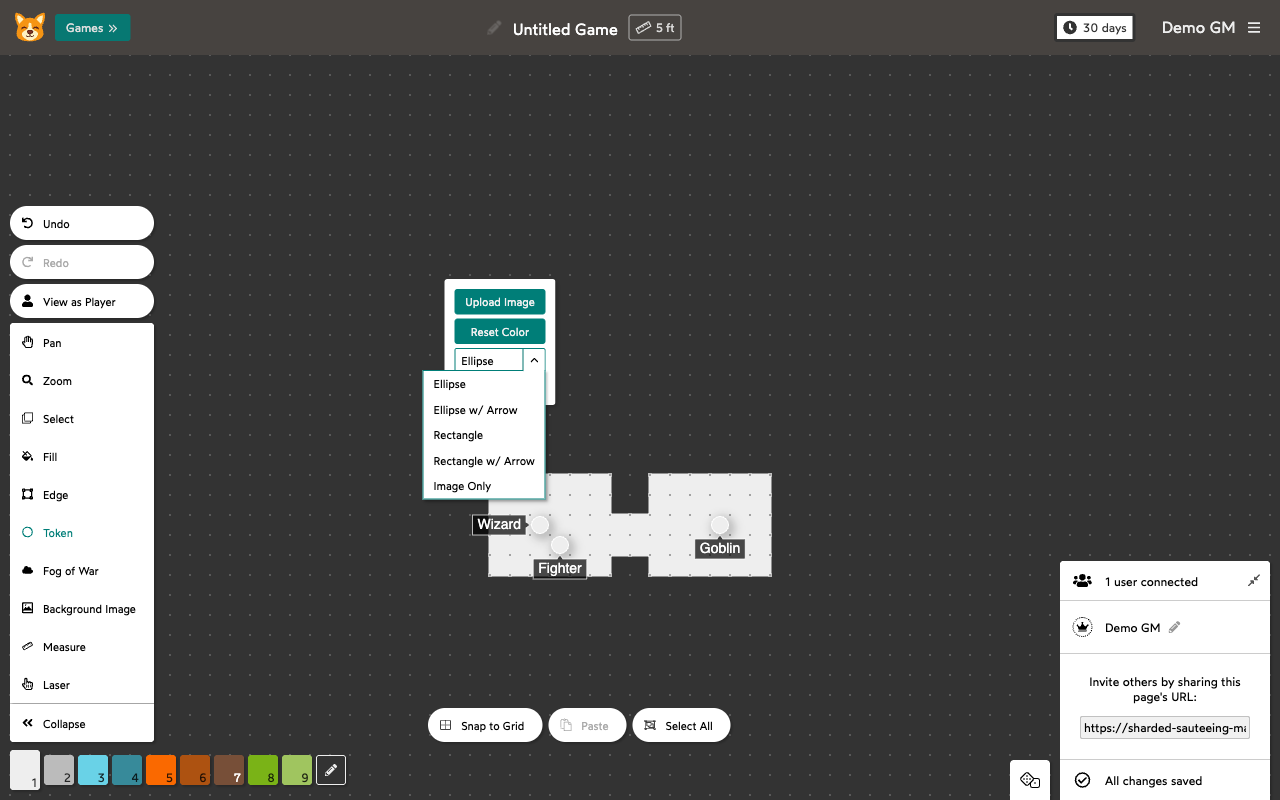
You can rotate tokens with an arrow by Shift-Clicking and dragging the rotation handle.
Token Images
Double-click a token and click Upload Image to give it a custom image. The image will be displayed within the token’s shape.
To remove an image, double-click the token and click Remove Token Image.
When multiple tokens are selected, you can add or remove images from all of them at once.
Hidden Tokens
Check the Hidden checkbox in the token properties to hide a token from players. Hidden tokens are still visible to GMs (shown slightly faded). This is useful for placing monsters or NPCs that players haven’t discovered yet.
A token is only hidden from players when it is completely within a Fog of War area, or when the Hidden checkbox is checked.
GM-Only Labels
While editing a token’s label, press Tab or click the lighter-colored area below the main label to add a GM-only label. This label is only visible to GMs — players will never see it. Useful for tracking hit points, notes, or other GM information.
Multiline Labels
Token labels support multiple lines. Press Enter while editing a label to add a new line.